SAS Studio Workstation
SAS Studio Workstation Space
You will need to be a member of the SAS Studio Workstation Space (https://sandbox.trs.dnanexus.com/spaces/537) in order to use the TRS's enterprise SAS license that is incorporated into a SAS Studio Snapshot file located in the Space (e.g. SASStudio_TRS.snapshot). TRS users that wish to use SAS Studio on TRS Commons should contact TRS Commons Support to request membership in the SAS Studio Workstation Space.
Run the pfda-ttyd Featured App with SAS Studio Snapshot
Follow the procedure in the Run the pfda-ttyd Featured App section of this tutorial, selecting the execution Context as SAS Studio Workstation Space and specifying SASStudio_TRS.snapshot in the Snapshot inputs section.
Open the workstation once it is running, download the sample SAS code, and start SAS Studio.
Copy the ttyd job URL and append :8080/SASStudio to it (e.g. https://job-gb95v8j0x42xgk0k36v02qgy.dnanexus.cloud:8080/SASStudio) to open SAS Studio and login with user "sasuser" password "sas".
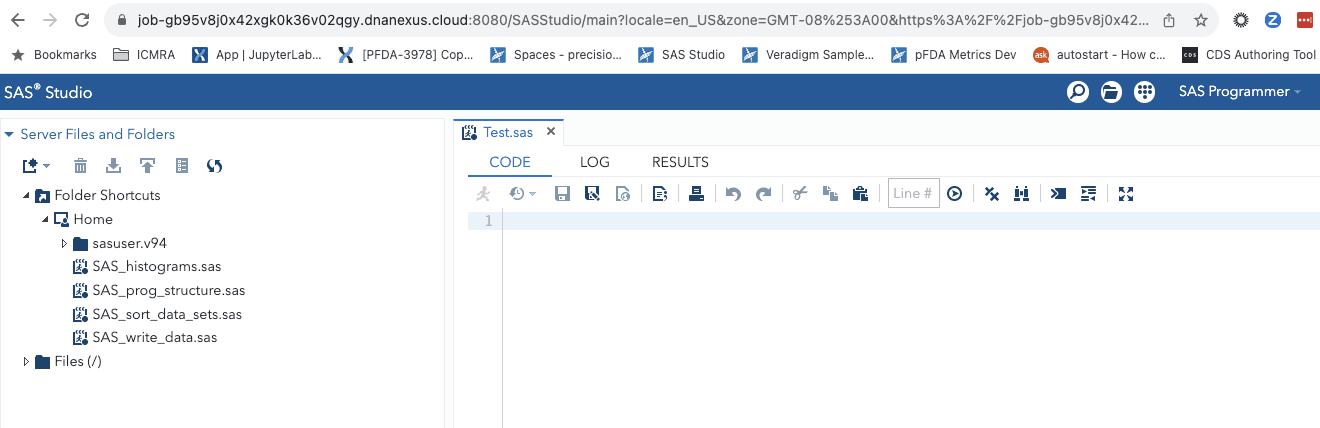
Note that the home folder in SAS Studio is mapped to /home/sasuser on the workstation local filesystem.
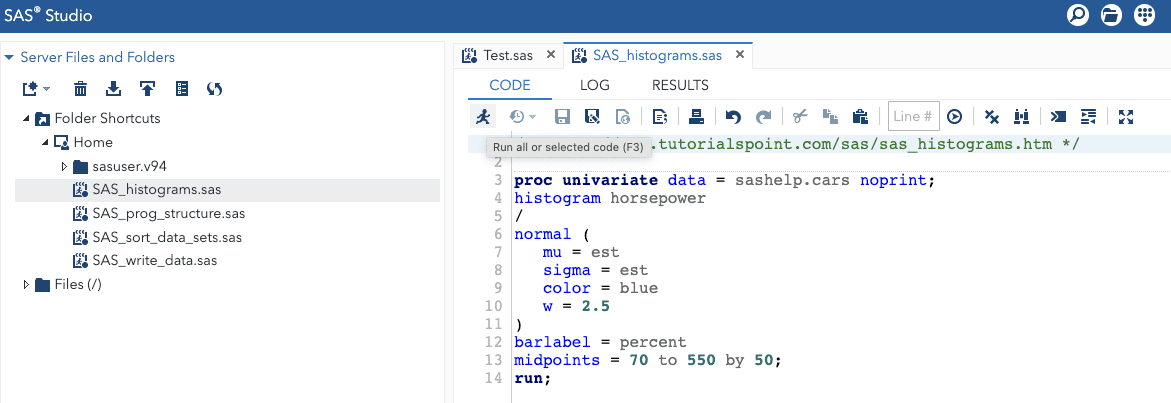
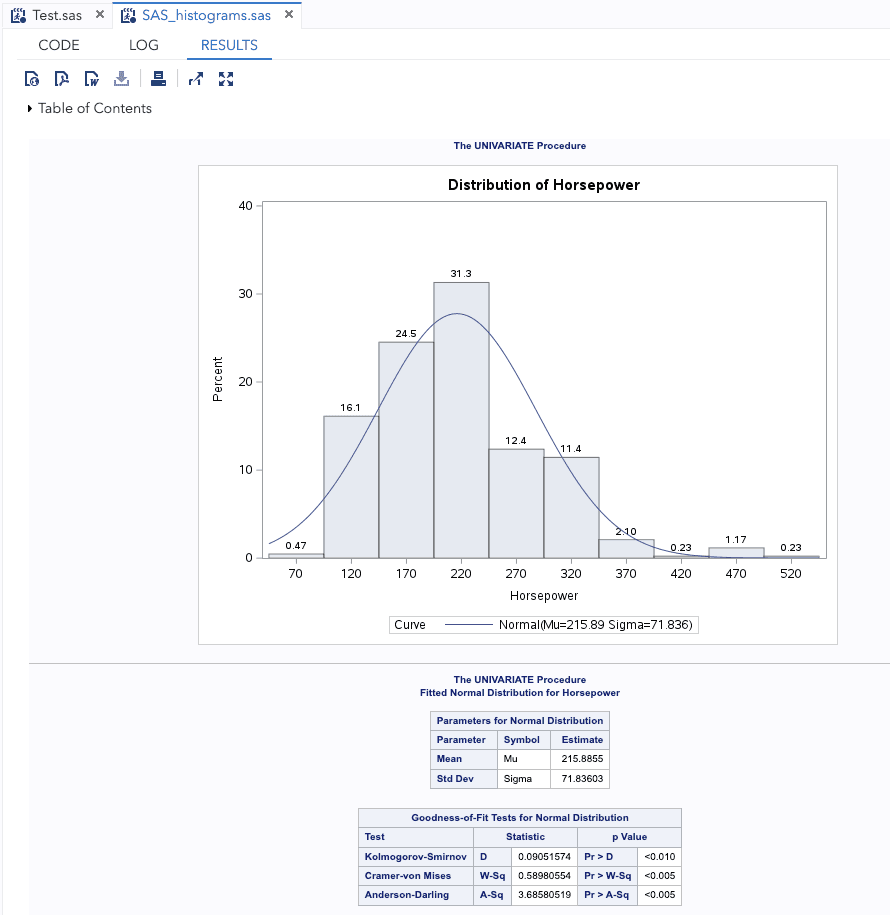
Open up one of the SAS example files and run it.
Open an SDTM File in SAS Studio
Open the Open_SDTM.sas app and run it to read a SDTM file in xport format into SAS Studio then select View Column Labels to explore the sample clinical data.